Transport Maintenance Form
Step-by-Step Guide to Using the Transport Maintenance Form System
Phase 1: Accessing the System
Requesting Access
Requesting Access:
A new mechanic or user must request access to the system.
Shared Drive Permission:
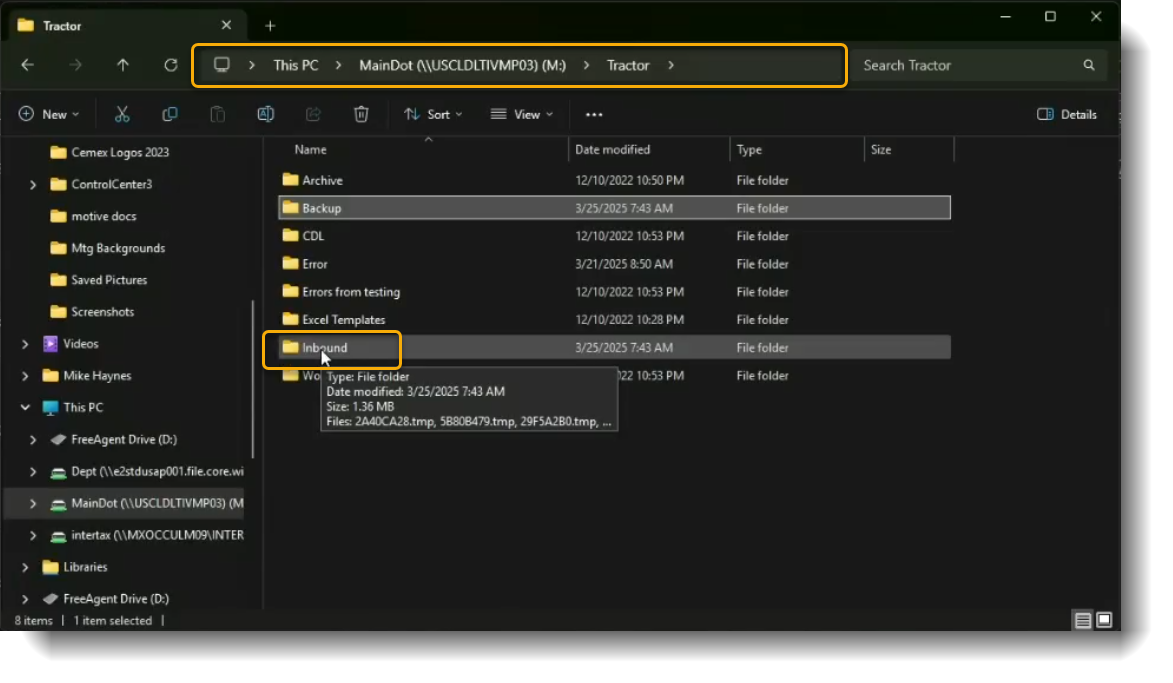
Access the shared drive at MainDot (\\USCLDLTIVMP03) (M:).
Note: Approval from Jose is required before sending a request to GSC.
Administrator Configuration:
The system administrator grants access within the application.
Username and Password Creation:
Created based on "noem name" and employee number.
Access to Folder:
User must have access to the application folder.
Phase 2: Logging Into the Application
Login Process
Opening the Application:
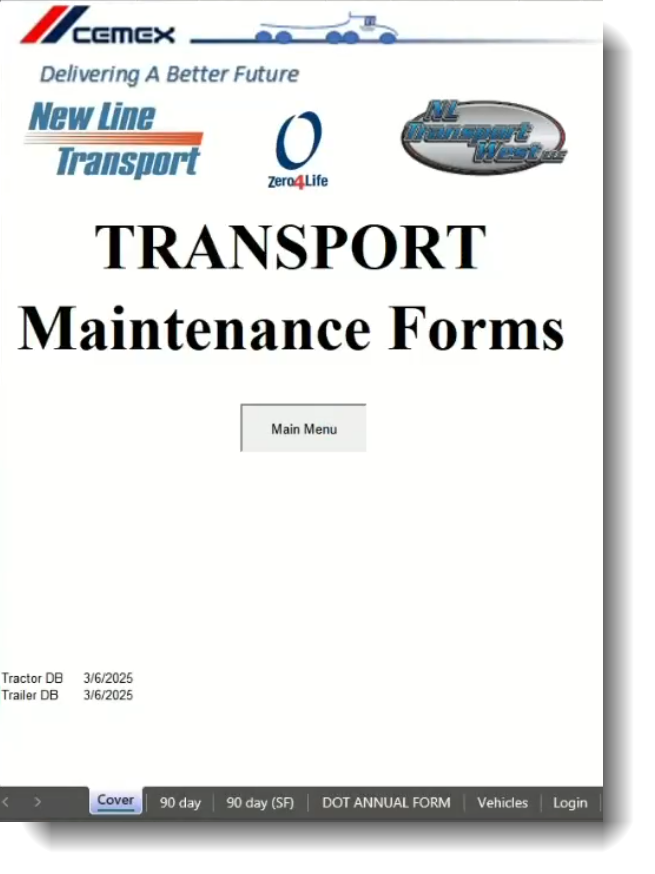
Navigate to the shared drive and open the Transport Maintenance Form System file.
Login Form:
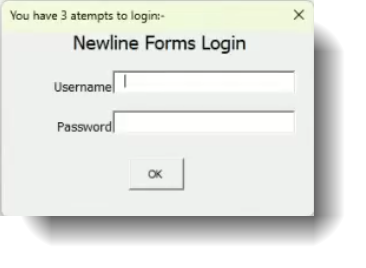
A login form appears upon opening the application.
Entering Credentials:
Enter assigned username and password.
Access Granted:
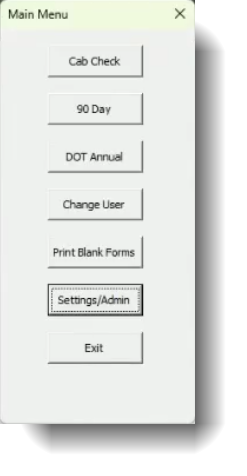
Successful login provides access to the main menu.
Phase 3: Performing an Inspection
Inspection Process
Selecting Inspection Type:
Choose an inspection (Annual or 90-day).
Entering Inspection Date:
Enter the current date.
Selecting Vehicle Type:
Choose the vehicle type (semi tractor, trailer, etc.).
Entering DOT Sticker Number:
If applicable, enter the sticker number.
Searching for Vehicle:
Search by vehicle number or VIN.
Conducting the Inspection:
Fill out the inspection form.
Phase 4: Handling Inspection Outcomes
Results of the Inspection
If the Truck Fails:
Clicking "fail" backdates the inspection by six months, marking it overdue.
If the Truck Passes:
Clicking "pass" records the inspection successfully.
Phase 5: Submitting and Saving the Form
Form Submission
Reviewing the Form:
Ensure details are correct before submission.
Submitting the Form:
Click "submit form" to finalize the process.
Printing:
Optionally print a copy.
Automatic Saving:
PDF saved to \\USCLDLTIVMP03\\Tractor\\Backup.
Phase 6: Automated Background Processing
Background Tasks
Document Service Activity:
Every 5 minutes, new PDFs are processed.
Filename Extraction:
Extract truck number and validate data.
Updating Loadmaster:
Match truck numbers for accuracy.
Phase 7: Notifications and Alerts
Alerts and Statuses
Upcoming Inspection Alerts:
System provides visual alerts.
Yellow Truck Status:
Trucks due for inspection turn yellow on-screen.